
Download Blackmagic Camera
Looking for Blackmagic Camera Download? Blackmagic Camera is a free professional video-recording app from Blackmagic Design that brings digital-film camera controls to compatible smartphones and tablets.
The app gives creators control over settings such as frame rate, shutter angle, ISO, white balance, focus, exposure monitoring, recording format, and LUTs, with capabilities depending on the device. It is available for compatible iPhone, iPad, Android phones, and Android tablets.
If you want to install Blackmagic Camera, the best approach is to first check whether your exact device is supported and then use the official download channel for your platform.
Blackmagic Camera Download Information
Before downloading, check these basic details:
| Information | Details |
|---|---|
| App Name | Blackmagic Camera |
| Developer | Blackmagic Design |
| Price | Free |
| Android | Supported devices running Android 13 or later |
| iPhone | Supported iPhones running iOS 16.6 or later |
| iPad | Supported iPads running iPadOS 18 or later |
| Android Download | Google Play / Galaxy Store |
| Apple Download | App Store |
| Main Purpose | Professional mobile video recording |
| Cloud Workflow | Blackmagic Cloud and DaVinci Resolve integration |
The operating-system requirements do not mean that every Android or Apple device is compatible. Blackmagic Design maintains a specific supported-device list, and available features can vary between models.
Download Blackmagic Camera for Android
Android users can download Blackmagic Camera through the official Google Play or Galaxy Store distribution channels on supported devices. Blackmagic Design currently lists Android 13 or later as the operating-system requirement.
Supported Android Devices
The official compatibility information includes selected models from several manufacturers, including:
- Samsung Galaxy S21, S22, S23, S24, and S25 series
- Selected Samsung Galaxy Z Fold models
- Google Pixel 6, 7, 8, and 9 models, excluding Fold
- OnePlus 11 and 12
- Xiaomi 13 and 14
- Sony Xperia Series 1, Series 5, and Pro-I models
- Compatible Oppo models
- Compatible Vivo models
- Samsung Galaxy Tab S9
- Xiaomi Pad 6
Blackmagic Design notes that not every supported model provides every feature. Therefore, check your exact phone or tablet before downloading if you need a particular resolution, codec, frame rate, or recording feature.
How to Download Blackmagic Camera on Android
- Check your Android version.
- Confirm that your exact device is supported.
- Open the official Google Play Store or Galaxy Store.
- Search for Blackmagic Camera.
- Confirm that Blackmagic Design is listed as the developer.
- Select Install.
- Wait for the installation to finish.
- Open the app and allow the required camera and microphone permissions.
Using the official store is preferable because it provides the normal installation and update path for the application.
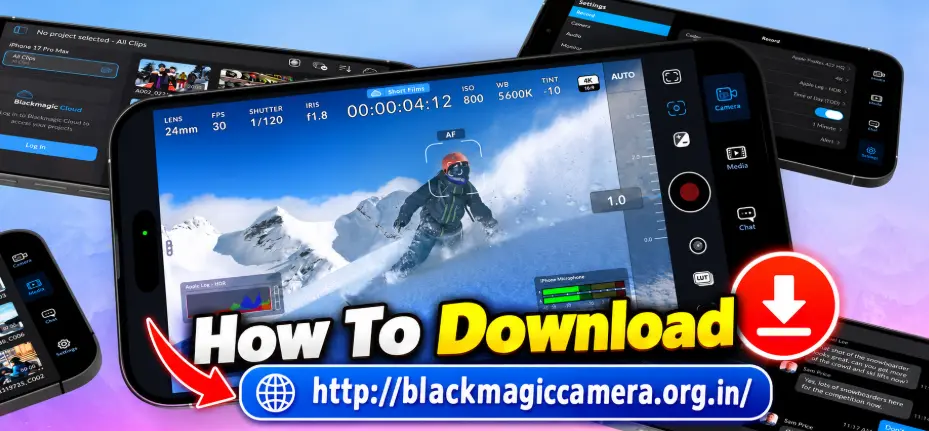
Blackmagic Camera APK Download
The term Blackmagic Camera APK Download generally refers to obtaining the Android installation package for the app.
APK files are Android application packages, but an APK found on an independent website is not automatically an official Blackmagic Design release.
What Is a Blackmagic Camera APK?
An APK contains the files required to install an Android application. Android users may encounter APK files on third-party websites, especially when searching for a particular application version.
However, the existence of an APK file does not prove that it came directly from Blackmagic Design.
Official App vs Third-Party APK
There is an important difference between downloading the official application through a supported store and downloading an APK from an unrelated website.
An official store listing gives you a clearer way to verify the developer and receive future updates. A third-party APK may be:
- Outdated
- Modified
- Repackaged
- Incompatible with your device
- Distributed without the original developer’s authorization
For normal installation, use the official distribution option whenever it is available.
What to Check Before Installing an APK
If you decide to use an APK from a third-party source, carefully verify:
- Application name
- Developer information
- Version number
- Android compatibility
- File source
- Requested permissions
- File integrity
- Whether the package has been modified
Do not rely solely on labels such as “100% safe,” “verified,” or “official APK” on an unfamiliar website.
Blackmagic Camera Download for iPhone
iPhone users can download Blackmagic Camera through the App Store. Blackmagic Design lists support for compatible iPhones running iOS 16.6 or later.
How to Download Blackmagic Camera on iPhone
- Open the App Store.
- Search for Blackmagic Camera.
- Check that Blackmagic Design is the developer.
- Select the download option.
- Authenticate if required by your Apple account.
- Wait for the installation.
- Open Blackmagic Camera.
- Allow camera and microphone access.
Once installed, you can configure recording, monitoring, audio, and other settings according to your device.
Blackmagic Camera Download for iPad
Black magic Camera is also available for compatible iPad models. Blackmagic Design currently lists iPadOS 18 or later for supported iPads.
The larger iPad display can be useful when monitoring footage, reviewing settings, or using the device as part of a more advanced production setup.
Blackmagic Camera Latest Version
If you are searching for the Blackmagic Camera Latest Version, check the current store listing or Blackmagic Design’s official release information before installing.
Version numbers can change, and Android and Apple releases may not always receive exactly the same updates at the same time.
For example, Blackmagic Design’s current product information documents ongoing feature development across supported platforms, including professional controls, Blackmagic Cloud integration, remote camera functions, and additional production workflows.
How to Check Your Installed Version
After installation:
- Open Blackmagic Camera.
- Open the app’s settings or information area.
- Look for the installed version information.
- Compare it with the latest version offered through your platform’s official store.
Keeping the application updated can provide access to newer features, compatibility improvements, and bug fixes.
Blackmagic Camera System Requirements
Blackmagic Camera does not have one universal hardware requirement because supported features depend on the individual phone or tablet.
Android Requirements
Blackmagic Design currently lists:
- Android 13 or later
- A supported device
- Compatible camera hardware
- Sufficient storage for video recording
The supported Android list includes selected Samsung, Google Pixel, OnePlus, Xiaomi, Sony Xperia, Oppo, Vivo, and tablet models.
iPhone Requirements
For iPhone, Blackmagic Design lists support for iOS 16.6 or later on supported iPhone models.
iPad Requirements
Supported iPads require iPadOS 18 or later according to Blackmagic Design’s current technical specifications.
Storage Requirements
Video files can become large very quickly, particularly when recording at higher resolutions or bitrates.
Before a long recording session, make sure your device has enough free storage for the footage you plan to capture.
How to Install Blackmagic Camera
Installation is straightforward when you use an official app store.
Android Installation
- Open Google Play or Galaxy Store.
- Search for Blackmagic Camera.
- Verify the developer.
- Tap Install.
- Wait for installation.
- Open the app.
- Grant the necessary permissions.
iPhone and iPad Installation
- Open the App Store.
- Search for Blackmagic Camera.
- Verify Blackmagic Design as the developer.
- Download the application.
- Open it after installation.
- Grant camera and microphone permissions.
- Complete the initial configuration.
How to Set Up Blackmagic Camera After Download
Installing the application is only the first step. A few basic settings can help you prepare for your first recording.
Allow Camera and Microphone Access
The application needs access to your camera for video capture and microphone access for audio recording.
Select Your Recording Resolution
Choose a resolution supported by your device and suitable for your project.
Higher resolution can provide more detail but can also increase storage usage and processing requirements.
Choose a Frame Rate
Select a frame rate based on your intended output.
For example, normal video and slow-motion footage require different frame-rate approaches.
Set White Balance
For consistent color between shots, choose an appropriate white-balance setting rather than allowing unnecessary changes during a scene.
Configure Exposure
Use ISO, shutter controls, and available monitoring tools to achieve a consistent exposure.
Check Focus
Confirm your focus before an important take. Blackmagic Camera provides focus-related tools on supported devices.
Check Audio
Before recording an interview or important video, make a short test recording and confirm that the microphone and audio levels are working correctly.
Blackmagic Camera Download and Blackmagic Cloud
One of the major reasons creators choose Blackmagic Camera is its connection to Blackmagic Cloud and DaVinci Resolve.
The app can automatically upload captured media to a Blackmagic Cloud DaVinci Resolve project, while users can also manually select clips for sharing. Blackmagic Camera also includes real-time messaging with DaVinci Resolve project users.
This can be useful for remote production teams because footage can become available to editors without relying entirely on manual file transfers.
Blackmagic Camera Download for Professional Video
Blackmagic Camera is designed for more than casual smartphone recording.
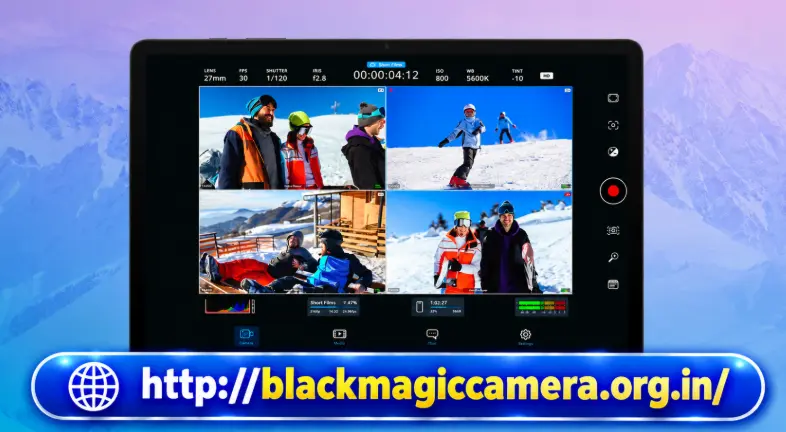
Depending on your device, the application can provide:
- Manual exposure controls
- ISO adjustment
- Shutter angle
- White balance
- Focus tools
- Histogram
- Audio meters
- Recording-format options
- LUT support
- Cloud workflows
- Media management
- Remote camera functions
The exact features depend on the device and selected recording configuration.
Common Download and Installation Problems
Blackmagic Camera Is Not Available in My Store
First check whether your device and operating system meet the supported requirements. Android availability is limited to specific devices rather than every Android phone.
The App Says My Device Is Not Supported
Check the official supported-device list. A compatible Android version by itself does not guarantee that the camera hardware is supported.
The APK Won’t Install
If you downloaded an APK from a third-party website, the package may be incompatible, damaged, outdated, or modified.
Check your Android version and device compatibility before attempting another installation.
The App Installs but Crashes
Restart your device and check whether a newer version is available through the official store. Also confirm that your device is on the supported list.
Some Recording Features Are Missing
This does not necessarily mean the installation failed. Blackmagic Design states that available features can vary by device. Resolution, codec, frame rate, and other capabilities can therefore differ between supported models.
The App Cannot Access the Camera
Check your Android or iOS permissions and make sure camera access is enabled for Blackmagic Camera.
Is Blackmagic Camera Free to Download?
Yes. Blackmagic Design lists Blackmagic Camera as a free application for supported devices. The official technical specifications show a price of Free, with distribution through the App Store for Apple devices and Google Play/Galaxy Store for supported Android devices.
Is Blackmagic Camera APK Safe?
The official application obtained through a supported app store is the preferred option.
For third-party APK files, safety depends on the specific source and package. An APK should not be considered safe merely because a website describes it as “verified” or “100% secure.”
If the official version is available for your device, there is generally little reason to replace it with an unknown modified package.
Blackmagic Camera Download vs Mod APK
The standard Blackmagic Camera application is distributed by Blackmagic Design.
A Blackmagic Camera Mod APK is a modified package created or altered by a third party. These are different distribution types and should not be treated as equivalent.
If your goal is simply to use the official camera application, download the standard release rather than an unknown modified package.
Blackmagic Camera Download FAQs
Where can I download Blackmagic Camera?
You can download the official app through supported app stores. Blackmagic Design lists the App Store for Apple devices and Google Play/Galaxy Store for compatible Android devices.
Is Blackmagic Camera free?
Yes. Blackmagic Design lists the application as free to download.
Can I download Blackmagic Camera on Android?
Yes, but only on supported Android devices. Blackmagic Design currently lists Android 13 or later and a specific set of supported devices.
Can I download Blackmagic Camera on iPhone?
Yes. Compatible iPhones can download the app through the App Store. Blackmagic Design lists iOS 16.6 or later for supported iPhones.
Can I download Blackmagic Camera on iPad?
Yes. Compatible iPads are supported with iPadOS 18 or later according to the current technical specifications.
Does Blackmagic Camera work on every Android phone?
No. Android support is selective. Blackmagic Design publishes a supported-device list, and not every supported model necessarily provides the same features.
What is Blackmagic Camera APK Download?
It refers to downloading the Android APK installation package. However, an APK from a third-party website is not automatically an official Blackmagic Design package.
Should I use a third-party Blackmagic Camera APK?
The official app-store release is the preferred option when it is available for your device. Third-party APKs may be outdated, modified, or incompatible.
How do I get the Blackmagic Camera Latest Version?
Check the official app listing for your platform or Blackmagic Design’s current release information. This is more reliable than downloading an old APK from an unrelated website.
Why can’t I see certain features after installing Blackmagic Camera?
Features vary according to device hardware, operating system, recording configuration, and supported capabilities.
Does Blackmagic Camera support Blackmagic Cloud?
Yes. Blackmagic Camera integrates with Blackmagic Cloud and DaVinci Resolve workflows, including automatic and manual media sharing.
Final Thoughts
The Blackmagic Camera Download process is simple when you start by checking device compatibility and use the appropriate official distribution channel.
Android users should pay particular attention to the supported-device list because Blackmagic Camera does not support every Android phone. iPhone and iPad users should also check the current operating-system requirements before installation.
If you are specifically searching for Blackmagic Camera APK Download, remember that an APK from a third-party website is different from the official store release. Check the developer, version, compatibility, and source before installing any package.
Once installed, Blackmagic Camera gives compatible mobile devices access to a much more production-focused video workflow, including manual camera controls, monitoring tools, recording options, LUTs, and Blackmagic Cloud integration.